This week, I dug into Nuke’s autolabel process, and now I have it providing useful labels on Shuffle2 nodes. That’s the new Shuffle, the one where we connect lines between in and out to make connection. The autolabel can help us understand simple shuffles like this one without even opening the control panel:
For complicated shuffles, we don’t even try to bake them down into an instantly-understandable label, but we do give an indication of what kind of complication is present, so we know to open the control panel and see… whatever craziness is going on in here:
Seriously, please don’t comp like this.
In the process of making this autolabel, I was reminded of a few things that make them more complicated in Nuke than we would expect. Here’s a list of the gotchas.
We are responsible for all of the node’s labelling.
Nuke uses the autolabel process to make all of the text and icons on a node. Placing an autolabel on a node completely replaces Nuke’s default one. That means we are now responsible for putting the name on the node, and adding any label text the user has written.
Node icons come from autolabel, too.
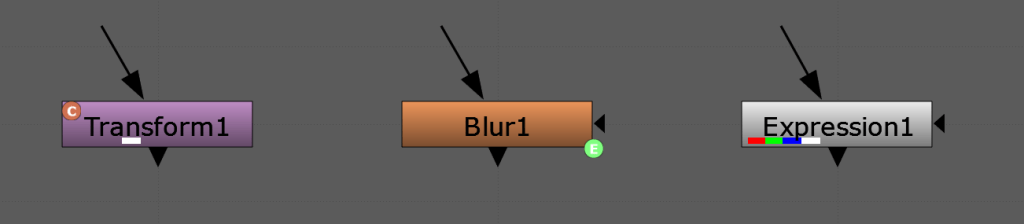
Node icons are those little graphics we’ve all seen so often that we don’t even think about them anymore. They’re the channel indicator rectangles in the lower-left corner and the C or E in a circle that alerts us to cloned nodes or expression-driven knobs.
Use Nuke’s default autolabel as a reference.
Nuke creates the default node autolabel for every node from a single Python script. It’s called autolabel.py and it lives inside the plugins folder in our Nuke install folder. Do not edit this file! But do refer to it when making a custom autolabel. Our code will need to replicate the functionality of this script.
It is relatively straightforward to handle the Node name and any label text ourselves. But if we need a reminder, find this part of autolabel.py by searching for: “# do stuff that works even if autolabel is turned off:“. Then, go down to “# build the autolabel:” to see how to assemble the autolabel.
One part that is both important and easy to overlook is the node icons. To see how Foundry is handling them, search for “# do the icons:“. Instead of trying to replicate this myself, I copied this whole section into my code.
With a bit of searching, you’ll also find some other writers’ blog posts about it as well.
Good luck.
I believe customizing Nuke to work the way you want to work is a comping superpower. Having less to hold in our heads while working helps us make better, more situationally appropriate decisions. But with great power comes great responsibility. Make it easy to disable your code if you discover it’s creating a problem you didn’t anticipate. And go crush some comps.
Thanks go to Eva Mateo, indoorjetpacks, Kyle Rottman, and Erwan Leroy on the VFXTalk Discord for being my copilots on this project. If you’re into VFX — whether as a pro, a student, a teacher, or an aficionado — come join us on the server!
This is an article about knowing, rather than hoping, we’ve nailed a track with Foundry’s Nuke. The approaches we’ll discuss are not software-specific, but our examples definitely will be. Feel free to apply these ideas to your compositing software of choice.
A Case Study
I had an experience during dailies for The Great Gatsby that changed my approach to tracking forever. The shot of that beautiful, yellow car careening around a corner came up for review. The artist on it – I remember it being Ben McEwan, but could be mistaken – had replaced the heads on the stunt driver and passenger with Gatsby and Nick. With the big, dynamic car motion, it was hard to tell if the faces were really stuck on. I would have relied on my comp supe to say if it was good enough. But Ben had added two little squares in the bottom corner of the frame containing stabilized views of each person’s head. Without the overall motion, it was really easy to see if his patches were truly stuck on to the plate.
My approach at the time relied on someone else to find my faults. Ben provided tools for verifying that he’d gotten it right. It’s the difference between hoping we’ve nailed it and knowing we have. I learned my lesson (thanks Ben!) and haven’t assumed a track was stuck on since.
Checking Tracks
Maybe the Tracker is showing green lights and the patch looks stuck on as the feature we’re tracking thrashes all over the screen. Watching the overlay as it follows our tracked feature is better than nothing, but still suffers from a weakness in human perception: we don’t distinguish small slips on things that are making big movements in our visual field.
So how can we know our track is really stuck on? We stop it from making big movements in our visual field. Inverting our track yields a stabilize. Apply that to the plate.
Now… is that feature really nailed down… or is it wobbling a little bit?
This is the time for a gut-check. We’re about to build a lot of work on top of that track. It’s much easier to be sure we nailed it now, before we use it to drive a bunch of things. The last thing we want is to have our supe call out that it’s slipping when we’re up against the delivery deadline and have to remember to fix it in every place we use the track. So let’s be sure it’s locked down now.
To increase the power of our slip-detection, lay a reference grid over the stabilized footage. Then crop it down to only the feature we’re tracking so it caches quickly in Nuke’s Viewer. Use the expression-linked stabilize so our tweaks to the track appear instantly.
Fixing Failed Tracks
If our track fails the stabilize test, don’t stress, but also don’t quit. We have options. Try one (or all) of the following.
Try Again with a Different Approach on the Same Feature
Nuke’s Tracker has a lot of options for how to find a feature over multiple frames. Try re-running the track with different settings. A common one is to change the warp type to better match the kind of transformation that’s happening to our feature in the plate. (Affine is a good option for features that are changing their perspective.) We could also try setting initial keyframes, have the Tracker adjust for luminance changes, use a higher track tolerance, or grab a reference frame more frequently.
Break It into Two (Or More) Tracks
For shots that have a definite change in light or motion which is causing track trouble across the transition, we could try using a separate tracker for each part.
Post-track Tweak
If the track is stable, but doesn’t lock down the feature we need it to, we can add a manual tweak downstream to get it running where we need it. This is often a matter of putting a Transform downstream and setting keyframes at the beginning and end of the shot (and maybe one somewhere in the middle if necessary.)
Track Something Else
Maybe we’re having trouble tracking the feature we want. If there’s a feature that’s easier to track nearby, something that moves like our preferred feature, we can track it and use the same post-track tweak approach to adapt it to what we need.
Manual Tracking
Avoid manual tracking if at all possible. It is slow and painstaking, but sometimes only a person can make sense of the chaotic motion of a feature. We’ll do this only as a last resort, after every other approach has failed. A careful review through the stabilize after each pass through the track shows us what to tweak on the next pass.
Using the Track
Now that we have our track nailed down nice and tight, there’s something we need to discuss before we use that track data. I know I’ve been harping on making sure the track is perfect before we use it. But this is the part where we consider that maybe we’ve made a mistake in the track (perish the thought) and look at ways to protect ourselves from further damage.
There are two ways to use the track we just made. We can expression link the track data, or we can bake it out as keyframed curves.
The expression link has the advantage of updating as soon as we make a change to the track. This is convenient if we do find an error in the track and need to fix it. But it’s really not good if we’ve based some roto or paint on the track data. Updating the track moves our splines or strokes from the places we put them, introducing errors where previously there were none.
Some folks prefer using baked keyframes just because they don’t like to have green lines stretched across their node graph. That’s fair, too. (Although we can easily hide them by typing alt-e.)
Consider these possibilities when using the track. Expression links are generally safe for simple things like backgrounds or static patches, but baked keyframes are much safer when we’ll be building a lot of work on top of the track.
Supporting Tools
Earlier we discussed track solutions that will end up as multiple nodes. This can work perfectly fine as long as the nodes stay together. Remember that transform node concatenation in Nuke only works if all the transforms use the same filter mode. Motion blur will be determined by the last node in the line.
For folk who really hate the way this looks or have a situation where that can only accept a single set of transform values (such as iTransform), have a look at Nuke Matrix Toolset by Erwan Leroy and Mathieu Goulet-Aubin. It contains a tool for baking multiple transforms down into a single node. It’s very user friendly. It also provides an easy way to make Roto nodes that are set up for track-assisted roto. There’s so much more in the toolset, but these are the things I reach for every single day.
Go Forth and Nail Tracks
Now that we’ve learned how to check tracks and several ways to fix them when they’ve gone wrong, we’ve immunized ourselves from bad, track-related surprises during dailies and tech-checks. We’ve also started down the road to being a trusted member of the comp crew. (Rule 3) Don’t be surprised when your supe notices your increased reliability and starts handing you harder shots. Don’t worry, these techniques work on hard shots, too!
Previously, in Nuke Comping Strategies: Label Things, we examined Nuke’s built-in tools for taking notes and finding them again. Here are two ways to make our labeling easier and deeper.
Introspective Labels
Labeling nodes manually gets a bit dicey when we’re labeling with data that’s easily changeable. The Blur node above is labeled with the size of the blur it’s making. That’s super-handy when we’re reading the node graph because we don’t have to open the Blur’s control panel to see how much blur it’s giving us. But if we’re doing this manually, we have to remember to update the label every time we change the blur size. Ick. Nobody’s ever going to remember to update those labels.
That’s where introspective labeling comes in. Nuke comes with the scripting language TCL built in, and we can use that to make labels that update themselves when we twiddle knobs. For example, put this in the Label knob of a Blur node: [value size]. The square brackets tell Nuke to evaluate the text inside them as a TCL expression, getting the value of the node’s size knob, and then put the result into the label in place of the TCL script. Now the node’s label will update automatically when we change the size knob.
We can apply this idea in lots of places, such as a Transform that tells us its filter mode (filter: [value filter]), or for making it clear whether a Tracker is stabilizing or matchmoving ([value transform]).
Each of these introspective labels means we don’t have to open the node’s control panel to see how it’s set up. It’s telling us in the node graph.
One thing to watch out for is that sometimes the knob names as Nuke knows them internally are not the same as the labels they have in the graphical user interface (GUI). If you’re not seeing the result you expect, hover your mouse over the knob and look at the tooltip. In the case below, Grade’s “gain” knob is actually labeled “white” internally. Use the knob name that appears in the tooltip.
We can even use TCL to reach back up the pipe to the top node in a graph and grab its name with [value [topnode].name]. Note that topnode follows the B pipe.
Topnode and careful node naming can help make the hidden inputs often found in a DasGrain setup more easily understandable. Sure, we could have labeled those dots manually, but this way we can see right away if their inputs ever get accidentally patched to something else. It happens!
One other thing to watch out for if we plan to use this technique a lot is that evaluating expressions relatively lightweight, but can potentially bog Nuke down if we have a lot of them. Switching to lazy expression evaluation will help lighten the load. In Nuke Preferences, go to Performance => Expressions, and set the Expression Re-Evaluation mode to “lazy.”
For more information about how TCL works in Nuke, pull down the Help menu to “Documentation” and follow the “TCL Scripting” link.
editLabel(), a. k. a. Building the Missing Keyboard Shortcut for Labeling
One drawback to the Label knob is that we need to open the node’s properties panel and switch to the Node tab before we can leave ourselves a note. Maybe this is why so many nodes go unlabeled. Why doesn’t Nuke come with a keyboard shortcut for easily editing node labels?!
Don’t fret! We can make our own. Here’s how.
To create this shortcut, we’ll be editing our menu.py file. Don’t know what that is? Have a look at this explanation from Foundry: What are the init.py and menu.py startup script files? Python scripting in Nuke is a rather deep rabbit hole that we won’t dive down here. If you’re not comfortable making and editing this file or writing Python generally, stop now and read through Nuke’s documentation or find someone to guide you.
Assuming that you’re starting with a brand-new, empty menu.py file. Add the following editLabel() function:
# Edit Label
def editLabel():
    """Pop up a dialog allowing the user to edit the contents of the selected node's label."""

    # selectedNodes() is much easier to work with than selectedNode()
    nodes = nuke.selectedNodes()

    if len(nodes) < 1:
        return
    elif len(nodes) > 1:
        nuke.message('Edit Label: Too many nodes selected. One at a time, please.')
        return

    node = nodes[0]
    label = node.knob('label')
    contents = label.value()
    new_contents = nuke.getInput('Edit label', contents)
    if new_contents is None:
        return
    if contents != new_contents:
        label.setValue(new_contents)
Special thanks: The editLabel() code originally came from Nuke’s Python manual somewhere around version 7. Sadly, it’s no longer in there. I’ve refined it a bit, but the foundation was provided by some kind technical writer back in the day. Many thanks to that anonymous person who has saved me untold hours.
As it says in the document string, this function pops up a dialog that you will use to edit the label of the node that you have selected. Now we need to tie this function to a keyboard shortcut (Control+L) so we can trigger it wherever we want. Add a few blank lines after the editLabel() function, and add this chunk. Feel free to put your name in place of “UserName”
m = nuke.menu('Nodes')
user = 'UserName'
tm = m.addMenu(user)
tm.addCommand('Edit Label', "editLabel()", shortcut='Ctrl+L')
These lines create a new menu in Nuke’s Nodes panel that has whatever name you put in instead of UserName. You did replace UserName, didn’t you? Once menu.py is complete, restart Nuke so that it picks up the new code. Notice the new menu in the Nodes panel? Now, give editLabel() a try. Select a node and hit Ctrl+L. Type something in the text box and hit return. Nifty, right?
Hands-free Labeling
Being able to easily change a node’s label is nifty. But what if we didn’t have to do it at all? What if the label we want could automatically be inserted when we create the node? It’s possible using Nuke’s knobDefault() function. Add the following to menu.py:
nuke.knobDefault("Blur.label", "[value size]")
Restart Nuke to read in the updated menu.py. Then notice that each Blur node we drop into the node graph displays the blur size right on it.
We can use the same approach to make Trackers that show their transform mode and reference frame values. Notice that we’re telling Nuke to set a knob default for “Tracker4,” even though the node is labeled “Tracker” in the GUI. This is another one of those internal vs. GUI name situations like with the knobs above. Select the node and hit i to show the info panel and use the name that is listed under “Class.”
Notice what happens to the label when we split the Value knob and set different values for red, green, blue, and alpha. Neat, huh?
We’re only scratching the surface here. knobDefault() can be used for lots of other handy things. Have a look at Nuke’s documentation to get going with it.
There we have it — three ways to make labeling easier and even more useful so we can get more done with less effort. Let me know how these work for you!
“I’ll remember this when I come back to it later.”
This is one of the easiest lies to tell ourselves when we’re compositing. Here are a few techniques for turning that lie into the truth when you (or whoever touches this shot next, see Rule 4) come back to your script.
The reality is, even if we do continue the work hours, days, or even weeks later, we won’t remember the details of what we were doing. If we haven’t left ourselves any notes, we’ll have to spend time figuring out what all this stuff is and what it’s for all over again. That’s time wasted.
Or maybe we do still remember the details. But holding them in memory was not the best use of our brain power during that period. In Getting Things Done, David Allen describes the mental effort of keeping our to-do list in our head and how carrying that list leaves us less capacity for addressing the problems at hand. That’s brainpower wasted.
Writing things down in a place where we’ll see them again is Allen’s key tool for unlocking productivity. We can’t bring our full attention to bear on our current problem until we get that list off our mind. But we won’t be able to get that list off our mind unless we know it’s in a place where we’ll see it again when we need to. Luckily, Nuke comes with some built-in labeling tools that are perfect for writing down that information in exactly the place we’ll need it later.
Node Name
Node names are editable. There’s even a keyboard shortcut for it. Select the node, hit n,and type. It only takes a few seconds to turn Roto11 into Roto_redDress, making it so much easier to remember the next time we see it.
Nuke will even let us remove the node’s class from the name, but be careful. We get very used to having it there. It’s frustrating to have to open the properties panel to tell whether that orange node is a Blur or a Defocus.
Node Labels
Every Nuke node has a Label knob with a text box where we can type anything we want. This is the perfect place for a quick comment about the purpose this node serves in the comp, about where it came from, or any other piece of data that may be useful later.
Labeled Dots
Dots stick the label text out the side to increase readability. Labeled Dots are really useful for labeling the output point of a section of our script, such as an assembled AOV build, or the group of nodes that create our background.
We can even make the label text really big, so it’s still readable even while we’re viewing the entire graph. (Extra points for stepping down the label sizes as you move into smaller and smaller subsections of your graph. These will get hidden and revealed automatically, maintaining readability as you zoom the Node Graph in or out.)
Sticky Notes
A big, yellow StickyNote makes an eye-catching reminder of something that’s unfinished or will need refinement before final delivery.
They’re also a great place to hold a to-do list. Place it close to the main Write node and give it three sections: “done,” “to-do,” and “questions.” When notes come up in reviews, make them new entries in “to-do.” As you address each note, move it to “done.” Having that to-do list written down frees us up to focus on one task at a time.
As we work, there will be things that we see that will need to be addressed for final, but will need to wait for later because the shot isn’t yet at that level of scrutiny. Add a to-do item so you don’t lose track of it.
Similarly, issues may pop up that need a lead’s or supervisor’s input. Add them to “questions” so whoever’s reviewing can respond.
All this note-taking seems like a lot of work at first. But the magic of keeping these running lists is that when it’s time to publish and send for review, we can copy this whole thing and paste it into the submission comments. Now anyone who views our work knows exactly what we did since the last version, has a list of the problems that we know need to be solved in later versions, and can clear up any questions we asked. This tells them way more than a cryptic “improved integration” note ever would. Clear and open communication builds trust (Rule 3) and makes your working life easier.
Pro tip: Start the text with <alignl> to get nice, left-justified lists instead of centered ones.
Backdrops
The Backdrop is the least useful node for organizing and labeling, even though it was designed for, and is commonly used for those purposes.
Why?
It is harder to select a Backdrop than the nodes it contains, especially as it gets bigger.
Backdrops do not expand automatically as the portion of the node graph that they contain grows. Ever tried to grab the bottom-right corner of a big Backdrop when zoomed out in the Node Graph? Such a pain. So fiddly and slow. And no setup ever got smaller as it got closer to final. Everything grows,all the time.
Finally, the default behavior adds bright, random color to your node graph, making it more difficult to see subtle color differences in your Viewer.
Okay, so what should we do instead?
Arrange each chunk of nodes so it can be easily selected in a single swipe, without also selecting unwanted nodes. This replicates the organizing feature of the Backdrop while avoiding the selecting and resizing problems.
Then, use a Dot to label the chunk’s output. Make the text size appropriate to the size of the chunk. Large labels will still be visible when viewing the entire Node Graph, and smaller ones will become visible as we zoom into smaller sections of the graph.
Using these two techniques (as in the script in Labeled Dots, above) gives us a script that’s more flexible and easier to refactor as the shot evolves. The easier rearranging our Node Graph is, the more likely we are to do it, giving us easier to read scripts with much less time spent tracing pipe paths and figuring out what feeds where.
Wrapup
Labeling things pays dividends when we come back to our scripts and can get right to work. It pays back double when our script gets handed off to someone else before we get back to it. That person will be able to find their way around just like we did thanks to our handy labels. They’ll think we’re pretty nice to work with.
And what about that day your supe has to hop into one of your scripts? (You know they’re the ones who fix any last-minute issues in our comps once we’ve rotated onto other shows, right?) That day is going to be a stressful one for them. If they find a conveniently-labeled, organized script, they’ll be able to get right to work and fix the issue. Easy-peasy. And they’ll also remember how nice your stuff was to work with the next time they’re requesting people for their crew. Being easy to work with puts you at the top of the list.
Made a thiocarbamide reference print today because I can never remember whether I like the warm brown or the cool one.
Turns out it’s the cool brown (on the top) that I like.
Thiocarbamide toner from Steve MacLeaod’s The Master Printer’s. Top is cool brown, middle is untoned, bottom is warm brown. Both browns were bleached to completion before toning. The print is on Arista VCFB, glossy.
It’s been a long time coming. Originally scheduled for release in 2023, Jerry Seinfelds’s Unfrosted will come to screens on 3 May 2024. I can’t wait. I learned so many things working on this show. Our crew was experienced and collaborative — the best kind of crew — and I’m excited for our (invisible) work to be shared with the world.
Defender 55-D is my favorite print developer. It’s nicely active and gives beautiful, warm tones with Arista VCFB, my preferred paper. But you won’t find it pre-packaged in photography stores. You’ll have to mix it yourself.
(Let’s pretend that photography stores are still a thing. I’m trying to visualize an ideal world here, even though I haven’t lived in a town with a photo shop in a decade.)
If you do some digging, you will turn up a few recipes for Defender 55-D. I’m old-fashioned and trust books, so I’ve been using the recipe provided by Steve Anchell in The Darkroom Cookbook (4th ed.).
It works wonderfully.
But I’ve just learned there’s an error in it. Someone goofed when transcribing the recipe for the US market. At tray strength for printing, the recipe I’ve been using has 4.3g/L of potassium bromide, which is the chemical that acts as the restrainer. More restrainer gives more warmth. The correct recipe gives only 0.6g/L of bromide in the tray.
This week, I’ve been printing with the corrected Defender 55-D recipe. I still like how it works, except for one tiny detail, which could be the reason it fell out of favor (ignoring, of course, that Defender is out of business.)
As we would imagine, with less restrainer in the developer, my print tone was more neutral. It made a lovely grey. For the first few prints. And then the image tone shifted warmer.
This happens because as more prints are developed, more restrainer is left in the developer, byproducts of the development process. This added restrainer slows development and warms the image tone. My incorrect version of 55-D contained quite a bit of restrainer from the start so building up a bit more as I worked didn’t change much. It gave warm tones throughout the printing session.
I’m glad to know the correct formula for my favorite developer. But in the future I’ll go back to doing it wrong, because that’s what it takes to make the prints look the way I want them.
One of the challenging parts of compositing is that there are always multiple ways to do anything. How do we know which way is best? Use these Comp Rules.
Rule 1: Keep it simple.
Nothing in VFX is ever simple. But that doesn’t mean your work should be complicated.
The minimum viable product is an idea from business development. Apply this idea to compositing. When starting a new comp, only build out as much of the comp as is necessary to get the feedback you need.
As you get that feedback and respond to it, keep simplicity in mind. Organize and label things clearly so that your comp is easy to understand (because Rule 4.) Keep building the minimum viable product in the context of that new feedback. Sometimes the process will lead to complication. Don’t stress. (Rule 6).
Rule 2: Faster is better.
Compositing is an iterative process. Each time you go through the review cycle (make a change, render, review, plan the next step, repeat), your work gets better. The faster you can get through the cycle, the faster you can get to final. Consider how your choices affect both render speed and interactivity in the GUI.
Picking up someone else’s work? See what you can do to make it run faster. If all else fails, precomp the parts you aren’t actively working on. Don’t wait for anything that you’re not adjusting.
Rule 3: Build trust.
This rule has nothing at all to do with compositing practice — it’s all about people skills. Having the trust of your immediate supervisor and teammates will make your job easier and help you final faster.
How can you build that trust? Be predictable. Communicate early and often.
You’ve been assigned some work, and probably a deadline to finish it. If you don’t have the time, materials, or anything else you need to finish the work by the deadline, that’s a problem.
Don’t ignore the problem. Sing out about it. Do it as early as possible. You may be reluctant to pass along bad news or be seen as a complainer. But you might be the only person in your team that is aware of the problem right now. If you stay quiet, other people will find out about the problem eventually. But by then it’ll be too late to fix it easily. Raising an issue early means you and your team have more options.
Problems arrive for so many different reasons. Maybe you misunderstood the brief. Maybe there’s a bottleneck somewhere upstream in the pipeline. Maybe the client changed their mind about what they want. Each one of these is only a problem until it’s acknowledged and solved. So speak out, get it solved, and get back to work.
Hiding problems destroys trust. Revealing them — especially if you can offer possible solutions when you do — builds it, and makes your work life better.
Rule 4: You won’t be the last person to work on it.
Don’t assume that nobody else is going to see the mess you are currently making in your comp script. Picking up work from other compositors is a regular part of the VFX process. Chances are that you won’t be the last person to touch the comp you’re doing now, even if you do take it to final. Did you know that your comp supe will be the one who opens up your script to hit a last-minute client note that comes in after you and the rest of the compositors have rotated onto new shows? Your supe may not be in the most forgiving mindset while they wade into your mess, and might still have that in mind the next time you’re on their crew. It’s a sobering thought, no?
So make your work easy for someone else to pick up, whether it’s your supervisor, your crewmate, or even you if you have to go back to something after some time has passed. Work in single-purpose sections that have clear inputs and outputs. Label things. Leave notes about what’s done and what still needs attention. Clean up your messes. Do it because your script is a representation of you, and because you remember Rule 3.
Rule 5: Check your work.
Have you ever sat in dailies and watched a render-mangled version of your shot loop on the big screen? It’s not fun, is it? You missed an opportunity to get feedback on your work and wasted the time of everyone in the room. That happened because you didn’t check your work.
Check every render, every time. Difference your output against the plate and make sure there are only changes where there are supposed to be changes. Check your frame edges. Check your grain.
Checking your work doesn’t only apply to your comp’s output. How do you know the track you just made is good? Check it. Reversing a matchmove yields a stabilize. If the feature you just tracked jumps around in the stabilize, that track is no good. Redo it.
Picking up a new matte painting or an AOV build for your CG monster? Check the new work against the previous version to make sure that nothing changes that wasn’t supposed to change.
Build a reputation for finding and fixing errors before someone else points them out. Do it by checking your work.
Rule 6: Every rule has an exception.
No simple heuristic will always work in every situation. Production shots have a way of blooming in complexity. It’s not always easy to contain the chaos. Don’t worry. But also, don’t give up on the rules entirely. Stay focused on getting your shot to final. Keep going where the process leads.
Rule 7: Facilitate changes.
Change is inevitable. You are working to someone else’s specifications. Don’t fight it, flow with it.
Make your life easier by building structures that are easily modified. Make edits at source resolution when possible. Make sure each section of your comp has a single function and that it has clear inputs and outputs.
Responding to last-minute changes becomes much easier when you’re prepared for it. And being able to respond with, “Okay, will do.” instead of, “That will take three days.” helps your supervisor relax. (See Rule 3.)
That’s it.
What do you think of these rules? Have a bone to pick? Did I miss something? Please let me know! In the spirit of Sister Corita, “There should be new rules next week.” Stay tuned.
Please join Jessica and me along with Vikki Vassar and Mark Lamb for an artistic-couples-themed fireside chat at the Southeastern Center for Contemporary Art (SECCA). Bring your questions or ideas! I’m sure we’ll get into some fun conversations.
All your life you’ve been told not to touch the surface of a photograph. I’ll bring some prints and will expressly encourage you to feel them all up, because fiber-based silver gelatin paper is one of the most luscious surfaces I know. Don’t miss it!
A high-definition, divided developer tuned for paper negatives. It is designed to avoid highlight block-up and to give as much shadow detail as possible. The shoulder on these negatives will generally be big and round. Highlight values will be flattened out, but still separated thanks to adjacency effects. Shadow values are present, but not endless.
There is no magic developer that will make paper look like film, but this one at least extends the dynamic range quite a bit compared to developing in Dektol.
Bath A, stock
Distilled water, warm:    800ml
Metol:                      5g
Sodium sulfite:            25g
Thymol:         5 or 6 crystals
Distilled water to make: 1000ml
Mix in the order given. The thymol crystals are there to prevent mold growth. Feel free to omit it if you’ll be using the developer quickly.
Bath B
Distilled water, warm:    800ml
Borax:                      5g
Distilled water to make: 1000ml
Tray setup
This is a divided developer, so bath A and B go in separate trays.
Dilute bath A 1 + 4 with distilled water. After developing, discard it. At tray strength, it’s too weak to be reused.
Bath B is used full strength and kept between sessions. Discard and mix a fresh bath B after developing 10 8×10 sheets or equivalent.
Developing Times
Bath A
Develop 6 to 9 minutes using intermittent agitation: 30 seconds initial continuous agitation, then 10 seconds every 3 minutes afterward.
Bath B
Develop 3 minutes with 30 seconds initial constant agitation to wash away any Bath A that’s still streaked across the surface. Then, let it be still for the rest of the time, keeping the emulsion surface under the solution at all times. Face-down is best, but watch out for trapped bubbles.
Notes
I developed this process for tray development on individual fiber-based negatives. It works okay with RC papers, but has a tendency towards streakiness in bath B and general weakness from not carrying as much developer over. I have no idea if it works using tanks or with multiple sheets in the tray simultaneously. If you try it that way, please let me know how it works.
Bath A is primarily developing the highlights in your negative. If you want a more dense negative, use a longer development time. If you want a less dense negative, one which may be better for scanning and a digital darkroom process, use a shorter time. You may want to experiment with even longer or shorter times than I’ve given here. There is a wide range of times that will give a usable negative. Feel free to experiment and find the time that works best for your images and your printing process.
In bath B, once you’ve agitated away the surface developer to avoid streaks, only the developer that’s soaked into the emulsion remains. This quickly exhausts in the dense hilight areas, but will keep going in the shadow areas, especially with the little kick-in-the-pants that the borax will give it. This is the compensating magic you may have read about in divided developers. It continues building density in the shadows until the developer is totally exhausted. Usually that takes about 3 minutes. Leaving the negative in bath B any longer than that won’t have any productive effect.
Do as little agitation as possible. Read Bill Troop’s explanation of minimal agitation on page 41 of The Film Developing Cookbook, 2nd edition.The key is to let the developer be still to encourage edge effects along high contrast edges. This increases contrast along the edge because exhausted developer will diffuse across the border and retard development of the shadow side, making it even darker. Simultaneously, fresher developer will diffuse from the shadow side across to the bright side, making the light side of the edge even lighter. If you agitate too much, the developer won’t sit in one place long enough to have any noticeable effect and your negatives will be flat and mushy.
Many thanks to Bill Troop and Steve Anchell. PND came directly from ideas in their books, The Film Developing Cookbook and The Darkroom Cookbook.